Convert a PDF Bank Statement When Your Bank Only Offers PDF
Updated November 5, 2026
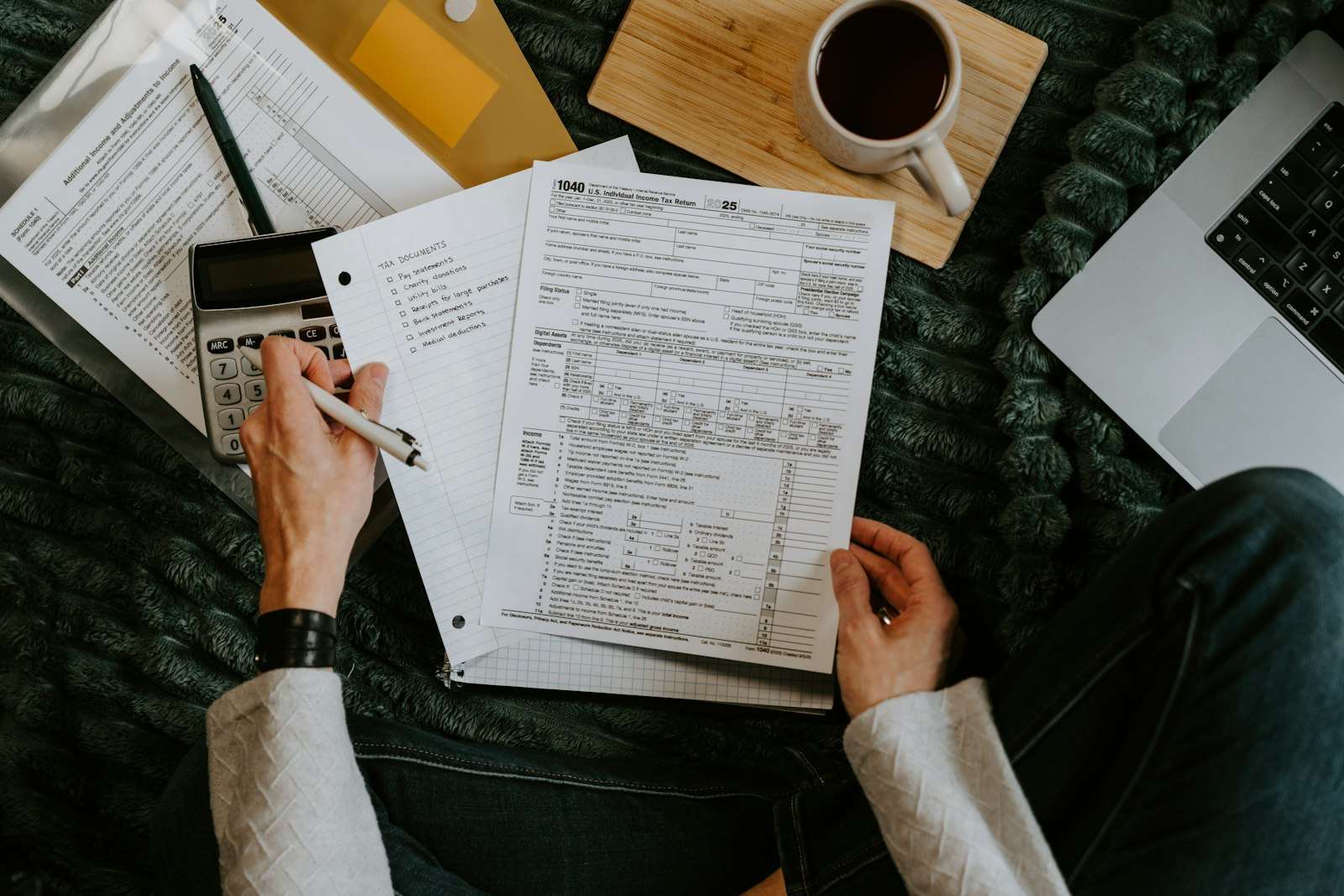
Sooner or later every bookkeeper gets a stack of PDF statements and nothing else. The transactions are all there, but not in a form accounting software can import. Retyping them is slow and error-prone. Converting them takes minutes, and with the right checks you can be sure nothing was missed.
Why you end up with only PDFs
- Download history limits. Banks typically offer QuickBooks or CSV downloads only for recent months. Statements stay available as PDFs for years.
- Closed accounts. Once an account is closed, transaction downloads usually disappear; statements are what’s left.
- New clients. A client arrives mid-year, or for catch-up work, with a folder of statements.
- Broken bank feeds. A feed disconnects for weeks, and when it reconnects, it doesn’t reach back far enough.
Digital vs scanned PDFs
Before converting, find out which kind of PDF you have. Open it and try to select a line of text with the mouse.
- If the text highlights word by word, it’s a digital PDF: the statement was generated by the bank’s system and contains real text. These convert quickly and accurately.
- If you can only draw a box over the page, it’s a scan or a photo: a picture of text. It needs to be scanned for text first.
When you have a scan, check whether the bank’s website has the same statement: online statements are nearly always digital, and downloading them again is often faster than OCR.
Converting step by step
- Drop the PDF in the PDF statement converter. It reads the text with its position on the page, rebuilds the lines and columns, and recognizes dates, descriptions and amounts.
- Review the transactions. Every line is shown in an editable table: date, description, amount. Descriptions that wrap onto a second line are joined, and section headings such as Deposits or Checks paid set the direction of each amount.
- Look at the balance check (next section).
- Choose the output:
- QBO for QuickBooks Online or Desktop;
- QFX for Quicken;
- CSV in the layout of QuickBooks, Xero or Wave;
- Excel to work with the transactions in a spreadsheet.
The statement is processed in your browser; it isn’t uploaded anywhere.
Checking the result
A statement prints an opening and a closing balance. If the transactions were read correctly:
opening balance + all transactions = closing balance
When the two sides agree, every dollar on the statement is accounted for. When they don’t, the difference tells you where to look:
- A difference equal to one transaction: a line was missed, often at a page break, or read twice.
- A difference equal to twice a transaction: that transaction has the wrong sign.
- Large, odd differences: usually a balance or a total line read as a transaction.
Fix the row in the table and the check updates immediately. Card statements work the same way with the previous balance and the new balance.
Once the file is imported, reconciling the account in your accounting software, or with the bank reconciliation tool, is the final confirmation.
Converting many statements
For a year of statements:
- Convert them one month at a time and import each file, or
- use batch conversion (on paid plans): drop all the PDFs at once, check each one’s balance, and download one file per month or a single combined file.
When combining, the months must follow each other: the closing balance of one statement should equal the opening balance of the next. If a month is missing, the combined file still works, but its balances can’t be checked end to end.
Scanned statements
Text recognition turns the picture of each page back into text, which then goes through the same reading and checks. Recognition is good on clean scans but can misread characters: an 8 for a 3, a dropped decimal point. The balance check catches most of these, but compare amounts with the statement before importing, and rescan at 300 DPI when the result is poor.
Privacy
Bank statements contain account numbers, names, addresses and a complete picture of someone’s finances. Many online converters upload the file to their servers. Converting in the browser means the statement never leaves your computer: you can confirm it by opening your browser’s developer tools and watching the Network tab while you convert.